Short answer: WebRTC file sharing is safe for most everyday needs, as long as you understand what the encryption covers and handle the pairing code with a little care. Every WebRTC data channel is encrypted, nobody in the middle can read the bytes, and the files never sit on a server. That still leaves a few honest caveats about IP addresses, relays and the devices themselves.
This guide walks through each layer that filefinch uses, explains the trade offs in plain words, and ends with the things no browser based tool can protect you from. No promises of perfect security here, just how it actually works.
What happens when two browsers connect
There is no server of ours and no filefinch backend, but two browsers still need to swap a small bundle of connection details (the WebRTC offer and answer) before they can talk. There are two ways to do that.
By default you pair with 6 words. One device taps Show pairing code and displays a QR code next to 6 words. The other device types the words, or a phone camera scans the QR code, which opens filefinch with those words. Behind the scenes, the 6 word handshake travels encrypted through public relays that cannot read it, and then your files go device to device over a WebRTC data channel.
The fallback is an advanced option inside Options called Connect with no relays (advanced). The first device shows a QR code that holds the full WebRTC offer, compressed, along with a Copy code button. The second device scans that QR code or pastes the code, then shows its own QR code and code, which go back to the first device the same way. After that single round trip by hand, the two browsers talk directly, and no relay carried the handshake. Because it needs no relay at all, this is also how two devices on the same local network can connect without internet once the app is loaded.
Either way there is no account, no upload, no copy of your files on anyone else's machine, and no analytics watching what you send.
The 6 word handshake and the public relays
The 6 words come from the BIP39 English list of 2048 words. Both devices turn them into a topic name and an encryption key. They then meet on several public MQTT brokers, which are message servers run by third parties, not by filefinch, and use them to swap the WebRTC offer and answer, sealed with that key. As soon as the connection opens, both sides leave the brokers.
Here is an honest breakdown of what those relays are in a position to see:
| A public relay can see | A public relay cannot see |
|---|---|
| The IP address each device uses to reach it | The 6 words themselves |
| When the devices connected and left | The contents of the sealed offer and answer |
| A random looking topic name | Your files, file names or messages |
| How big the sealed handshake messages were | Your passphrase, if you use one |
A relay could also fail or refuse to pass messages along. That would stop the pairing rather than expose anything, and the fix is simple: use the no relay option instead.
Why a short code is acceptable here
Six words is far shorter than a password you would use for an account, so it is fair to ask whether that is enough. The difference is what the code has to protect, and for how long:
- It works once. A pairing code is used for a single connection and is then done.
- It expires after 10 minutes. Anyone hoping to guess it has a small window, and the code is useless afterwards.
- It only protects the handshake. Files and messages never pass through the relays, and the DTLS keys that encrypt the transfer are generated inside the two browsers.
- The confirmation words catch a stolen code. If someone saw the words over your shoulder and joined with them, the confirmation words appear on their screen, not on yours. Each device has its own certificate, so your own device would show different words or none at all. No file moves until the right words are typed, and three wrong tries close the connection.
None of this makes the 6 word mode perfect. Someone who sees your screen could read the words, and the relays do learn some metadata. Treat the words as private: show them only to your own device or the person you are sending to. If you would rather no third party carry the handshake at all, Connect with no relays (advanced) is always available under Options.
Encryption in transit: DTLS
WebRTC always encrypts data channels with DTLS, the datagram version of the TLS protocol that protects HTTPS pages. A web page cannot switch it off. Each browser generates its own key material for every connection, so there is no shared master key sitting somewhere that could unlock past transfers.
In practice this means:
- Someone on the same public Wi-Fi who captures your traffic sees encrypted packets, not files.
- Your internet provider sees that encrypted traffic is flowing, but not what it contains.
- A relay server in the path, if one is used, forwards ciphertext it cannot open.
The details are standardized in IETF documents such as RFC 8827 on WebRTC security architecture, if you want the formal version.
The connection fingerprint and man in the middle attacks
Encryption only helps if you are encrypting to the right device. The weak spot in any pairing scheme is the exchange of connection details. If someone could intercept that exchange and swap in their own, each side would happily set up an encrypted channel with the attacker, who could then pass the data along while reading it. That is a man in the middle.
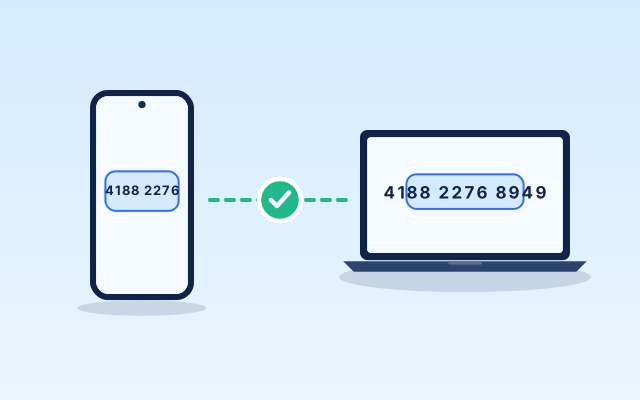
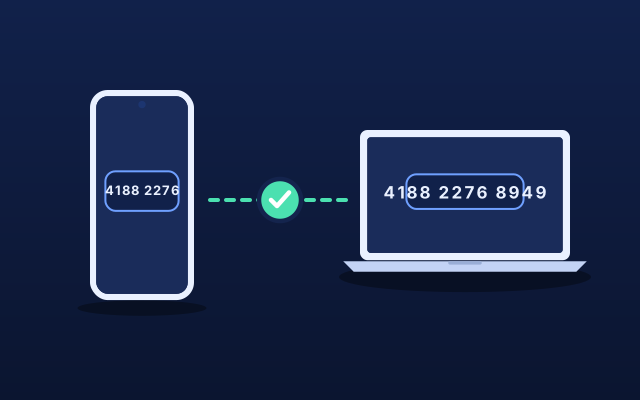
filefinch adds a check for this. Each session description contains a DTLS certificate fingerprint, and filefinch derives a 12 digit code from both of them. In the no relay mode, both devices display that code after connecting, and you compare it on both screens.
After a 6 word pairing, filefinch goes one step further. It hashes both certificate fingerprints and a session nonce with SHA-256 and turns the result into 6 confirmation words. The device that joined shows them, and you type them on the device that showed the pairing code. A device that joined with a code someone saw over your shoulder has its own certificate, so it gets different words. Three wrong tries close the connection, and the 12 digit code is still there under "Details: connection fingerprint" if you want it.
Typing the words or comparing the code takes a few seconds when both devices are in front of you. For a remote friend, read them to each other on a phone call. This is the single most useful habit for sensitive transfers.
Network addresses, STUN and TURN
A direct connection needs each side to know where to find the other. Two helpers make that possible in every mode, and each one sees a little metadata.
STUN and what your IP address reveals
To find a direct path through home routers, filefinch asks public STUN servers from Google what your public address looks like from the outside. The STUN server learns your IP address at that moment. It never sees your files, file names or anything else from the transfer.
The connection details also carry network addresses, called ICE candidates. In the 6 word mode they travel sealed through the relays; in the no relay mode they sit inside the QR codes and codes you carry by hand. Either way the other device learns them, because it has to know where to reach you. So treat a pairing code the way you would treat your home address:
- Share it only with your own device or the specific person receiving files.
- Do not post pairing words or codes in public chats, forums or social media.
- Use a fresh one for each connection.
If hiding your IP address from the other person is a hard requirement, a direct peer to peer tool is simply not the right fit for that situation.
TURN relays: when traffic goes through a middle server
Sometimes both devices sit behind strict NAT, such as symmetric NAT, carrier grade NAT on some mobile networks, or a locked down corporate firewall. A direct path may then be impossible, and the connection fails. filefinch detects this, explains it in plain words, and lets you add your own TURN servers in Settings. Those settings stay on your device.
A TURN relay forwards the encrypted DTLS packets between the two browsers. It can see both IP addresses, when the transfer happens and roughly how much data moved. It cannot see file contents, file names, folder paths or your passphrase. If you run your own TURN server, you control that metadata too.
The passphrase layer for sensitive files
DTLS already encrypts everything. The optional passphrase adds a second, independent seal that you control. Both people type the same passphrase, and each device derives an AES-GCM 256 bit key from it using PBKDF2-SHA256 with 600,000 iterations and a random 16 byte salt. The passphrase itself never travels over the connection.
Every 64 KiB chunk is then sealed again with a fresh random 12 byte IV and bound to its file and offset as additional authenticated data. That means a chunk cannot be reordered, swapped into another file or edited without the receiver noticing. On top of that, every file is hashed with SHA-256 while it streams, and the receiver checks the hash at the end.
Pick a passphrase that is long and not reused elsewhere, and share it through a different channel than the pairing code, ideally out loud.
What a browser app cannot protect you from
Honesty matters more than marketing here. filefinch, like any browser based tool, cannot defend against:
- A compromised device. Malware, a malicious browser extension or someone with access to either computer can read files before encryption or after decryption.
- Sending to the wrong person. If you hand the words or the code to someone you should not trust, encryption faithfully delivers your files to them.
- What the receiver does next. Once saved, a file is out of your hands.
- Metadata visible to the network. Your provider, the STUN server, the pairing relays and any TURN relay can see that a connection happened, and some of them roughly how big it was.
- A tampered copy of the app. Only open filefinch from its real address, and keep your browser updated so the WebRTC and crypto code inside it gets security fixes.
Received files are kept in your browser storage on your own device so you can preview them later. On a shared computer, clear that local library when you are done.
When filefinch is not the right tool
If the receiver cannot be online at the same time, if you need to hide your IP address from the other side, or if your organization requires audited enterprise file transfer with logging, a different tool fits better. For the many ordinary cases, such as moving photos to your laptop or sending a large video to a friend, a direct encrypted transfer is a solid choice.
A short safety checklist
- Show the QR code and the 6 words privately, and use each code only once.
- Type the confirmation words after a 6 word pairing, or compare the fingerprint on both screens in the no relay mode.
- Use a passphrase for anything sensitive, shared by voice.
- Choose Connect with no relays (advanced) under Options if you want no relay involved in the handshake.
- Keep browsers and operating systems updated, and clear the local library on shared devices.
Ready to try it? Open filefinch on two devices, see how connecting works, or read more about privacy on the home page.
Step by step
- 1
Pair with the 6 words, privately
Tap Show pairing code on one device, then type the 6 words or scan the QR code on the other. Show the words only to your own device or the one person receiving the files.
- 2
Or connect with no relays
If you prefer that no relay carries the handshake, open Options and choose Connect with no relays (advanced). Each device shows a QR code and a Copy code button, and you scan the QR code each way or copy and paste the codes by hand.
- 3
Confirm the words or compare the fingerprint
After a 6 word pairing, type the 6 confirmation words shown on the device that joined into the device that showed the code. In the no relay mode, check that both screens show the same 12 digit fingerprint. If anything differs, disconnect and start over.
- 4
Add a passphrase for sensitive files
Agree on a passphrase in person or by phone, and have both people type it in filefinch before sending. Let the transfer finish so every file passes its SHA-256 check.
- 5
Close the session when done
Close filefinch on both devices. A pairing code works once and expires after 10 minutes, so make a fresh one for the next transfer.
Questions people ask
Is WebRTC encrypted?
Yes. WebRTC data channels are always encrypted with DTLS, and browsers do not let a web page turn that off. The keys are created in the two browsers for each connection.
Can the public relays used for the 6 words read my files?
Your files never pass through them. The relays only carry the short connection handshake, sealed with a key derived from the 6 words, so they see random looking topic names and ciphertext. They can still see the IP address each device uses to reach them and when it connected.
Can a TURN server read my files?
No. A TURN relay only forwards packets that are already encrypted between the two browsers. It can see both IP addresses, the timing and roughly how much data moved, but not the content.
Does WebRTC leak my IP address?
To build a direct connection, each device has to learn the other device's network address, and the STUN server sees your public IP. That is how peer to peer works. Share pairing codes only with people you would give your address to.
What does the connection fingerprint protect against?
It protects against someone swapping the connection details during the handshake, whether that handshake went through the relays or was carried by hand as QR codes in the no relay mode. In the no relay mode you compare the 12 digit code on both screens. After a 6 word pairing, the 6 confirmation words are built from the same certificate fingerprints plus a session nonce, so typing them checks the same thing and also proves the device that joined is yours. If they match, the two browsers are talking directly to each other.
Is filefinch safe on a computer with malware?
No browser app can fully protect you if one of the devices is compromised. Malware on either end can read files before they are encrypted or after they are decrypted. Keep both devices updated and trusted.