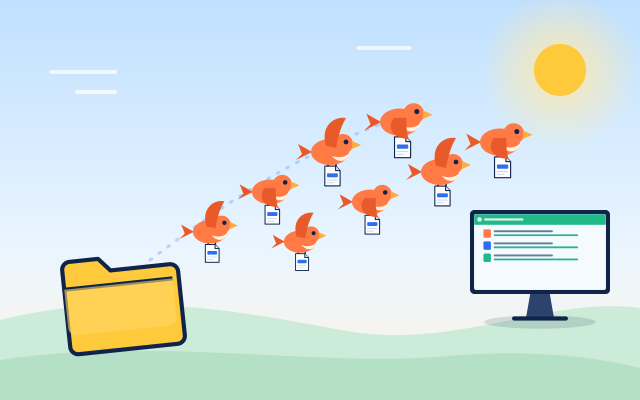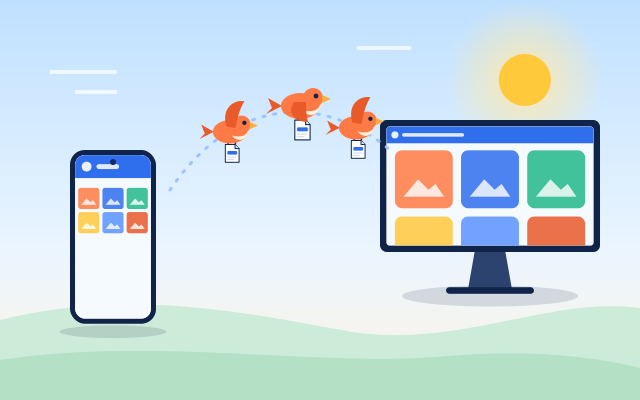

Getting photos, videos and documents off a phone and onto a computer used to mean hunting for the right cable, then waiting for a driver or a prompt to trust the device. With filefinch you can skip all of that. Open it in the browser on both devices, scan a QR code with the phone, and send the files straight across, with nothing to install and no account to create.
It works between any pair: Android to Windows, iPhone to Mac, iPhone to Windows, Android to Linux. The rest of this guide walks through the setup, explains what happens behind the scenes, and covers the few things that can slow you down.
What you need
The list is short:
- A phone with a modern browser (Chrome, Firefox or Safari all work)
- A computer with a modern browser (Chrome, Edge, Firefox or Safari)
- A network connection on both, ideally the same Wi-Fi
- Enough free space on the computer for what you are sending
That is it. No cable, no Bluetooth pairing, no cloud account, and no sign up.
Step by step: phone to PC in a few minutes
- On the computer, open filefinch and tap Show pairing code. The screen shows 6 words and a QR code side by side.
- On the phone, open filefinch and scan the QR code with the camera, or type the 6 words in the "Have a pairing code?" box. The QR code holds the same words, so either route works.
- Wait a moment while the two browsers find each other and connect. The code works once and expires after 10 minutes.
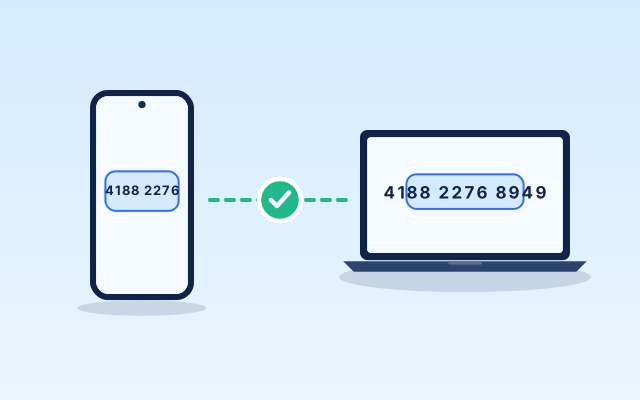
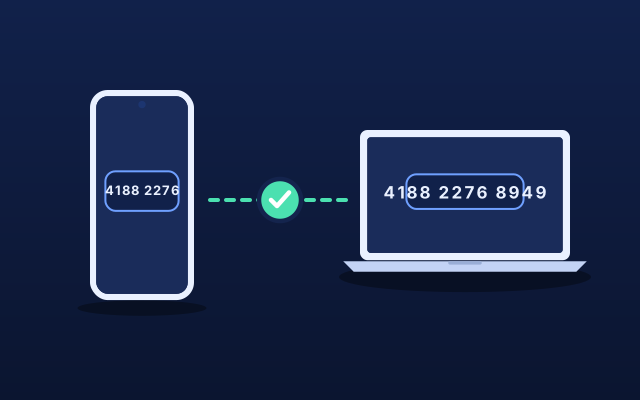
- The phone shows 6 new confirmation words. Type them on the computer. They prove the phone is really yours, and no file moves until they match.
- On the phone, pick the photos, videos or files you want to send. They appear on the computer as they arrive.
Typing on a small keyboard is easier than it sounds. The words come from the BIP39 English list, so the first four letters of each word are enough, autocomplete suggests the rest, and a single typo is corrected. You can also paste the whole phrase into any box.
Advanced: connect with no relays
There is a fallback that keeps every relay out of the setup, useful when a network blocks the public relays. On the computer, open Options and choose Connect with no relays (advanced):
- The computer shows a QR code and a Copy code button. Scan the QR code with filefinch on the phone, or paste the code there.
- The phone then shows its own QR code and code. If the computer has a webcam, hold the phone up to it and scan. If not, tap Copy code on the phone, get the text to the computer any way you like, such as a note to yourself, and paste it.
- The two devices connect after that single round trip. Compare the 12 digit connection fingerprint on both screens.
Camera scanning in the browser uses the BarcodeDetector API where the browser supports it. When it is missing, pasting the code always works, so you are never stuck.
Why this works without a cable
A cable gives the two devices a private, direct path. filefinch builds a similar direct path over the network using WebRTC, the browser technology behind video calls.
Before that path exists, the two browsers need a short introduction. With the 6 words, both devices turn the phrase into a private topic name and a key, then meet on several public MQTT brokers (servers run by third parties, not by filefinch) to swap their connection details. The 6 word handshake travels encrypted through public relays that cannot read it, and both devices leave the relays as soon as the connection opens. With Connect with no relays (advanced) instead, the computer's QR code itself carries its network addresses and session details, compressed, and the phone's QR code carries the phone's details back, so no relay is involved in the setup.
Either way, the two browsers then open a data channel between them. There is no server of ours in the middle, nothing is uploaded, and your files go device to device.
The data channel is encrypted with DTLS, and the keys are created inside the two browsers for that one connection. Matching confirmation words, or in the no relay mode a matching 12 digit fingerprint on both screens, confirm that nobody slipped into the middle while the devices were being introduced. For a deeper look, read the security guide.
Same Wi-Fi or not
You do not have to be on the same network, but it makes a big difference.
| Situation | What to expect |
|---|---|
| Phone and PC on the same Wi-Fi | Traffic stays inside your home or office network and is often much faster than uploading to the internet. |
| Same network, no internet | Works with Connect with no relays (advanced) once filefinch has loaded, because its QR codes include local addresses. The 6 words need internet. |
| Phone on mobile data, PC at home | Works in most cases, limited by the phone's upload speed. |
| Strict mobile carrier or corporate firewall | A direct path may be impossible. filefinch explains this and lets you add a TURN relay in Settings. |
If you are sitting next to your computer, joining the same Wi-Fi first is the easiest speed boost.
Photos and videos stay in original quality
Many wireless methods quietly shrink photos or re-encode video to save bandwidth. filefinch does not touch the content. Files are sent byte for byte, so the resolution, the frame rate and the metadata (such as date and location, if your camera saved them) arrive exactly as they left the phone.
Each file is checked with a SHA-256 hash at the end, so you know the copy on the computer matches the original. Before saving, you can preview images, videos, audio and text right in the browser on the computer, which is handy for picking out the shots you actually want.
Tips for long transfers from a phone
Phones are built to save battery, and that can work against a long transfer:
- Keep the screen on. Mobile browsers may pause tabs that are in the background. Leave filefinch in front until it finishes.
- Plug the phone in if you are sending a large batch of video.
- Do not lock the phone mid-transfer. If it happens, reconnect, and the transfer resumes from the last confirmed point instead of starting over.
- Send in batches if you have thousands of photos, so you can check each group on the computer.
It also works the other way. Once connected, either device can send, so you can push a document from the PC back to the phone over the same connection.
Where the files end up on the computer
On desktop Chromium browsers such as Chrome and Edge, you can choose a folder and filefinch writes the files straight into it. In other browsers the files are saved through a streamed download, so they land in your usual downloads folder. Received files are also kept in a local library inside the browser on that computer, so you can preview, save or clear them later. Nothing is stored online.
When filefinch is not the right tool
A direct transfer is not always the best fit:
- You want continuous automatic backup of your camera roll. filefinch moves files when you ask. A dedicated backup app is better for hands-off copies.
- The computer is off or far away. Both devices need to be online with filefinch open at the same time.
- You only have one tiny file. If it already sits in a chat with yourself, that may be quicker.
- A USB cable is right there and your network is very slow. A cable can still win on a weak connection.
For everything in between, especially full-quality video and large batches of photos, scanning one QR code and sending directly is usually the simplest way. Open filefinch on your computer and give it a try.
Step by step
- 1
Show the pairing code on the computer
Open the filefinch app in a browser on your PC or Mac and tap Show pairing code. 6 words and a QR code appear side by side.
- 2
Scan the QR code or type the 6 words on your phone
Open filefinch on the phone, then scan the QR code with the camera or type the 6 words in the Have a pairing code? box. The QR code holds the same words.
- 3
Or connect with no relays
If the network blocks the public relays, open Options and choose Connect with no relays (advanced). Each device shows a QR code and a Copy code button, so scan the QR code each way or copy and paste the codes.
- 4
Type the confirmation words on the computer
The phone shows 6 new confirmation words. Type them on the computer. If they match, the two devices are talking directly to each other. In the no relay mode, compare the 12 digit fingerprint on both screens instead.
- 5
Pick photos, videos or files on the phone
Choose what to send. Files go across byte for byte, and you can preview them on the computer before saving.
Questions people ask
Can I transfer files from iPhone to a Windows PC without a cable?
Yes. filefinch runs in Safari on iPhone and in Chrome, Edge or Firefox on Windows, so any pair can connect. Both devices just need a modern browser and a network connection.
Do the phone and the PC need to be on the same Wi-Fi?
No, but it helps. On the same Wi-Fi the traffic stays local and is often much faster. Across different networks it still works, limited by the slower connection. Pairing with 6 words needs internet on both devices, while Connect with no relays (advanced) also works on a local network with no internet once the app is loaded.
Do I have to type the 6 words on my phone?
No. You can scan the QR code shown next to the words, since it holds the same 6 words. If you do type them, the first four letters of each word are enough and a single typo is fixed for you.
Will my photos and videos lose quality?
No. filefinch sends files byte for byte, with no recompression and with metadata kept as is. The file on the PC is identical to the one on the phone.
Do I need to install an app on my phone?
No. filefinch works in the phone browser. You can add it to the home screen as an installable web app if you use it often, but it is optional.
Why did my transfer pause when I switched apps on my phone?
Mobile browsers may pause background tabs to save battery. Keep filefinch in front and the screen on during long transfers, and reconnect to resume if it stops.