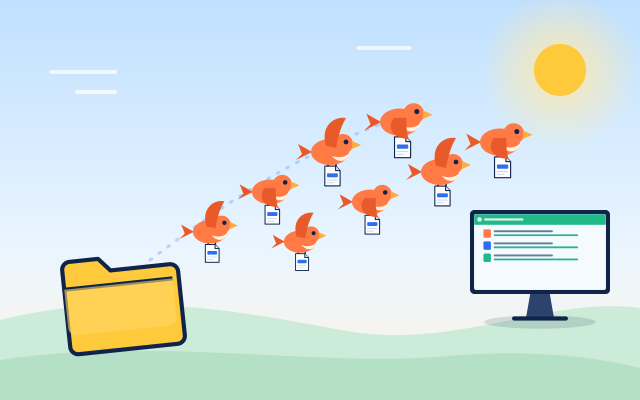
Sending one file is easy almost everywhere. Sending a folder with hundreds of files spread across nested subfolders is where things get awkward. The usual workaround is to compress everything into an archive, send that, and ask the other side to unpack it, which costs time and disk space at both ends and fails badly if the archive gets cut off halfway.
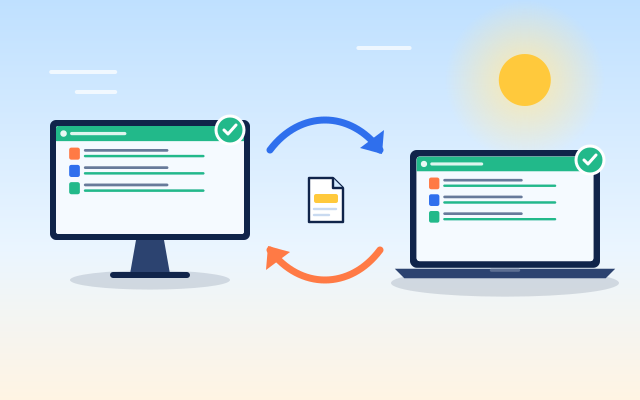
filefinch takes a more direct route. You pick the folder, it sends every file along with its place in the tree, and the receiving device rebuilds the same structure. It runs in the browser, it is free and open source, and there is no upload to a server in between.
Why zipping is not always the answer
Archives have their uses, but for moving a folder between two devices they add steps:
- You need free space for both the original folder and the archive on the sender.
- The receiver needs space for the archive and the unpacked copy.
- Compressing photos, video and other already compressed files often saves little.
- If the transfer of one huge archive breaks, you may have to send all of it again.
Sending the folder as individual files avoids every one of these. Each file streams in small chunks, is checked on arrival and lands in its proper place.
How filefinch sends a folder
When you choose a folder, filefinch collects every file inside it and notes each one's relative path, for example photos/2026/summer/beach.jpg. Then:
- Each file is read in 64 KiB chunks, so even very large files never have to sit whole in memory.
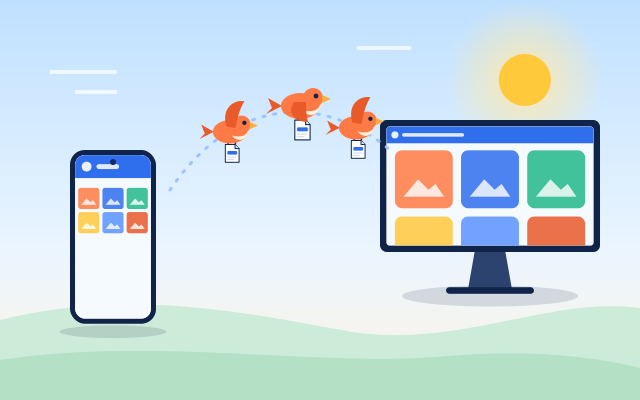
- The chunks travel over an encrypted WebRTC data channel, directly from one browser to the other.
- Each file is hashed with SHA-256 while it streams, and the receiver checks that hash when the file is complete.
- The receiving device recreates the subfolders and writes each file into the right one.
The result is the same tree you started with, without an archive in the middle.
Setting it up
There is no account and no server of ours to sign in to. By default, you connect with 6 words:
- Open filefinch on the device that has the folder and tap Show pairing code. The screen shows 6 words and a QR code side by side.
- On the receiving device, type the 6 words in the "Have a pairing code?" box, or scan the QR code with the camera. The QR code holds the same words.
- The receiving device then shows 6 new confirmation words. Type them on the first device. When they match, you are connected directly, and no file moves before that.
- Choose the folder and start sending.
The words come from the BIP39 English list, so the first four letters of each word are enough and a single typo is fixed. The code works once and expires after 10 minutes. To set up the connection, the 6 word handshake travels encrypted through public relays that cannot read it (public MQTT brokers run by third parties, not by filefinch), and both devices leave them as soon as they are connected. The folder itself never touches those relays: your files go device to device.
Advanced: connect with no relays
If a network blocks the public relays, or you would rather have no relay involved in the setup, open Options and choose Connect with no relays (advanced). The first device shows a QR code and a Copy code button. Scan that QR code on the receiving device or paste the code there, and it shows its own QR code and code in return. Scan or paste that one back on the first device. That one round trip by hand connects the two browsers, after which you compare the 12 digit connection fingerprint on both screens. Because it needs no relay at all, it also works on a local network with no internet once the app is loaded. The 6 words, by contrast, need internet to reach the relays.
Where the folder lands
Safety: what the receiver is protected from
Receiving a folder means accepting a list of file names and paths chosen by the other device. A careless tool could let a crafted path write files outside the folder you picked. filefinch treats every incoming path as untrusted and cleans it before writing:
| Risk | What filefinch does |
|---|---|
Paths using .. to climb out of the chosen folder | Removed, so files stay inside your destination |
| Names that Windows refuses | Adjusted to a safe name |
| Control characters in names | Stripped out |
| A file with the same name already present | Given a unique name instead of overwriting |
This matters most when you receive from another person, but it also protects you from odd file names created on a different operating system.
For the transfer itself, WebRTC encrypts everything with DTLS, and you can add a passphrase that both people type for a second layer of AES-GCM encryption on every chunk. The privacy section explains both.
Big folders and long transfers
A folder of family videos or a full project directory can be many gigabytes. A few habits make it smoother:
- Check free space on the receiver first. filefinch does not cap size, but the disk does.
- Use the same network if you can. On the same Wi-Fi or wired network the traffic stays local and is often much faster.
- Keep screens on. Mobile browsers may pause background tabs.
- Reconnect if it drops. The transfer resumes from the last confirmed point instead of starting over.
One time send or folder sync
Sending a folder is a one time copy. If you want the same folder to stay in step on two devices, filefinch also has folder sync between two devices, with three modes:
- Two way: changes on either side are brought across.
- Push: one side's folder is copied over to the other.
- Pull: the other side's folder is brought to you.
One side proposes a sync, and a plan of changes (copies, updates, deletions and conflicts) is shown and must be approved before anything is written. Later syncs send only what changed, and conflicting edits are kept as separate copies rather than overwritten. The sync guide covers this in detail.
When filefinch is not the right tool
A direct folder transfer is not ideal for every case:
- The receiver cannot be online with you. Both devices must have filefinch open at the same time. A cloud upload works better for someone who will download later.
- You are sharing a folder with a large group. A hosted link is simpler than many separate connections.
- You need versioned backups. filefinch moves and syncs files, but it is not a backup system with history.
- Both networks block direct connections. filefinch detects this and lets you add a TURN relay in Settings, but a free relay is not always available.
When you just need a folder, with all of its subfolders, to arrive intact on another device, sending it directly is usually the shortest path. Open filefinch on both devices and send your next folder without zipping it.
Step by step
- 1
Connect the two devices
Open filefinch on both devices. Tap Show pairing code on one, then type the 6 words or scan the QR code on the other. If a network blocks the public relays, Options has Connect with no relays (advanced), where you scan a QR code each way or paste the codes.
- 2
Confirm the 6 words
The receiving device shows 6 new confirmation words. Type them on the sending device before sending anything. In the no relay mode, check that both screens show the same 12 digit fingerprint instead.
- 3
Choose the folder on the sender
Select the folder you want to send. filefinch reads every file inside it along with its relative path.
- 4
Pick where it lands on the receiver
On a desktop Chromium browser, choose a destination folder so the tree can be written straight into it. Other browsers save through a streamed download, and a whole folder arrives as one .zip file.
- 5
Let it finish and check
Keep both devices online until every file arrives. Each file is verified with SHA-256, and name conflicts get a unique name instead of overwriting.
Questions people ask
Can I send a folder without zipping it first?
Yes. filefinch sends each file with its relative path and rebuilds the folder tree on the receiving side, so there is no need to create an archive and unpack it later.
Are subfolders kept when sending a folder?
Yes. The relative path of every file is sent, so nested subfolders are recreated in the same structure on the other device.
What happens if a file with the same name already exists?
filefinch gives the incoming file a unique name instead of overwriting the existing one, so nothing on the receiving device is replaced by surprise.
Is it safe to receive a folder from someone else?
Paths from the other device are treated as untrusted and cleaned up. Names cannot climb out of the folder you chose, and names Windows refuses or that contain control characters are fixed.
How do I keep a folder up to date on two computers?
Use folder sync instead of a one time send. It shows a plan of changes for approval and later only sends what changed.