Keeping one folder identical on two computers usually means paying for cloud storage, installing a sync client on both machines and trusting a company with a copy of everything inside. If all you really want is your work laptop and your desktop to agree on a project folder, there is a simpler route: compare the two folders directly and send only the differences.
filefinch does that in the browser, for free, with no account. You pick the folder on each computer, choose a direction, review a plan of exactly what will change, and approve it. The files go straight from one machine to the other.
How folder sync works
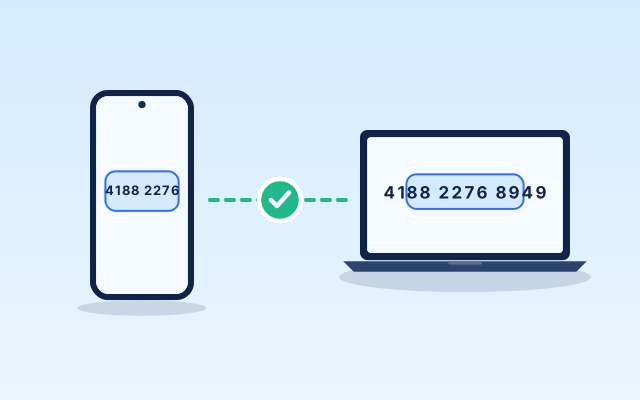
Both computers open filefinch and pair the same way as for any other transfer. By default one computer taps Show pairing code and shows a QR code next to 6 words, and the other types the words (the first four letters of each are enough) or scans the QR code. The 6 word handshake travels encrypted through public relays that cannot read it, the code works once and expires after 10 minutes, and from then on your files go device to device. Once connected, the computer that joined shows 6 new confirmation words, and you type them on the first computer. No file moves until they match.
If you would rather no third party carry even the handshake, open Options and choose Connect with no relays (advanced). Each computer shows a QR code and a Copy code button, and you scan the QR code each way or copy and paste the codes by hand. Either way, the connection is a WebRTC data channel between the two browsers, encrypted with DTLS. With 6 words, matching confirmation words show that nobody tampered with the pairing. In the no relay mode, compare the 12 digit fingerprint instead, which is the same on both screens when nobody tampered with it.
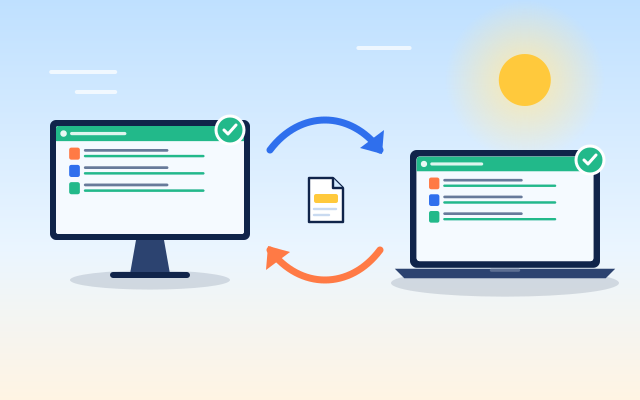
Once connected, one side proposes a sync. filefinch compares the two folders and builds a list of changes. That list is shown before a single byte is written. After you approve it, the needed files stream across and the receiver checks each one with a SHA-256 hash. On later syncs, only files that changed since the last time are sent, so a big folder with a few edits finishes quickly.
The three sync modes
| Mode | What it does | Good for |
|---|---|---|
| Two way | Merges changes from both computers so they end up matching | A project you edit on both machines |
| Push | Makes the other computer match this one | Publishing a finished folder to a second machine |
| Pull | Makes this computer match the other one | Catching up a laptop before you travel |
Two way is the friendliest default for shared work. Push and pull are useful when one computer is clearly the source of truth and you want the other one to follow it.
The plan you approve first
Every sync shows a plan with four kinds of entries:
- Copy: a file exists on one side only and will be created on the other.
- Update: a file exists on both sides but differs, and one side will be brought up to date.
- Delete: a file was removed on one side and the mode says the other side should follow.
- Conflict: a file changed on both sides since the last sync.
Nothing touches your disk until you say yes. If something in the plan looks wrong, cancel, check the folders you selected and try again.
How conflicts are handled
Conflicts happen when you edit the same file on both computers between syncs. Some sync tools pick a winner silently, which can quietly throw away an afternoon of work. filefinch keeps conflicting edits as separate copies instead of overwriting either one. You end up with both versions side by side and can merge or delete by hand.
A few habits reduce conflicts:
- Sync before you start working on the other computer.
- Sync again when you finish.
- Avoid keeping the same document open on both machines at once.
Safety around paths and file names
Syncing means another device writes files into a folder on your computer, so filefinch treats paths from the other side as untrusted. They are sanitized before anything is saved: no climbing out of the chosen folder with .., no names Windows refuses, no control characters. If two files would end up with the same name, one gets a unique name rather than replacing the other.
This also makes syncing between Windows, macOS and Linux practical, since a file name that is fine on one system but invalid on another is cleaned up instead of failing the whole run.
Which browsers and setups work best
Folder sync works best on desktop browsers that can write directly into a folder you pick, through the File System Access API. Chromium based browsers such as Chrome and Edge on Windows, macOS and Linux support that. Other browsers save received files through a streamed download, which is fine for one off transfers but less suited to keeping a folder in step.
For speed, put both computers on the same network. Traffic then stays local and is often much faster than going through the internet. The 6 word pairing needs internet to reach its relays, but with Connect with no relays (advanced) two computers on the same local network can connect even with no internet once filefinch is loaded. Across the internet, speed is limited by the slower upload of the two connections.
If the connection drops in the middle, reconnect and the current file resumes from the last confirmed point rather than starting over.
Sync or a one time folder transfer?
Sometimes you do not need ongoing sync at all. If you just want to hand a folder to someone once, sending it is simpler: the tree is rebuilt on their side and there is no plan to review. See send a whole folder. Use sync when the same folder lives on two computers and both keep changing over time.
When filefinch is not the right tool
filefinch sync is deliberate and on demand. Both computers have to be online at the same time with filefinch open, and there is no mailbox in the middle holding changes for later. That makes it a poor fit if you want edits to appear on a computer that is switched off, or if you need constant background sync across many devices. A cloud sync service or a home server running dedicated sync software handles those cases better.
It is also not a backup. Sync faithfully copies mistakes and deletes along with good changes. Keep a separate backup of anything important, ideally on a disk that is not part of the sync.
For two computers you own, a project folder you care about and a preference for keeping files off other people's servers, a direct sync is a clean fit. Open filefinch on both machines and run your first plan. You can read more about how your data stays on your devices in the privacy section.
Step by step
- 1
Connect the two computers
Open filefinch on both computers. Tap Show pairing code on one and type the 6 words or scan the QR code on the other. If the network blocks the public relays, use Connect with no relays (advanced) under Options instead.
- 2
Choose the folder on each side
Pick the folder you want to keep in step on each computer. A desktop browser that can write into a chosen folder works best.
- 3
Pick a sync mode
Choose two way to merge changes from both sides, push to copy this side over, or pull to bring the other side here.
- 4
Review the plan
filefinch lists every copy, update, delete and conflict it intends to make. Nothing is written until you approve it.
- 5
Approve and run
Approve the plan and let it finish. Next time, only files that changed since the last sync are sent.
Questions people ask
Can I sync folders between two computers without the cloud?
Yes. filefinch connects the two computers directly in the browser and compares the chosen folders, then sends only what is needed. Only the short pairing handshake passes, encrypted, through public relays that cannot read it, and your files go device to device.
What happens if the same file changed on both computers?
That is a conflict. filefinch keeps both versions as separate copies instead of overwriting one with the other, so you can decide which to keep.
Does filefinch sync automatically in the background?
No. A sync runs when both computers are online with filefinch open and you approve the plan. It is a deliberate, on demand sync rather than a background service.
Can a sync delete files?
It can, if a file was removed on one side and the mode calls for mirroring that. Deletes are listed in the plan before anything happens, so review them carefully before you approve.
Does folder sync work between Windows and Mac?
Yes, filefinch works across operating systems. File names that one system refuses are cleaned up, and paths from the other computer are checked so nothing can be written outside the folder you chose.